
When it comes to printing a booklet, it is not merely about designing eye-catching pages. One must also ensure that the pages are printed in the right order so that they make sense to the audience after the booklet has been printed, folded and bound. Correctly setting the pages helps avoid printing errors and reduce costs, whether it is a company brochure, product catalog, event program, or a training manual.
If you have never carried out this process before, do not worry that much, as it is not complicated once you get to know the difference between reading order and print order. This article will teach you how to order booklet printing, the preparation of your pdf file and how to preview your file before you teach it to be printed.
How Should You Arrange Pages for Booklet Printing?
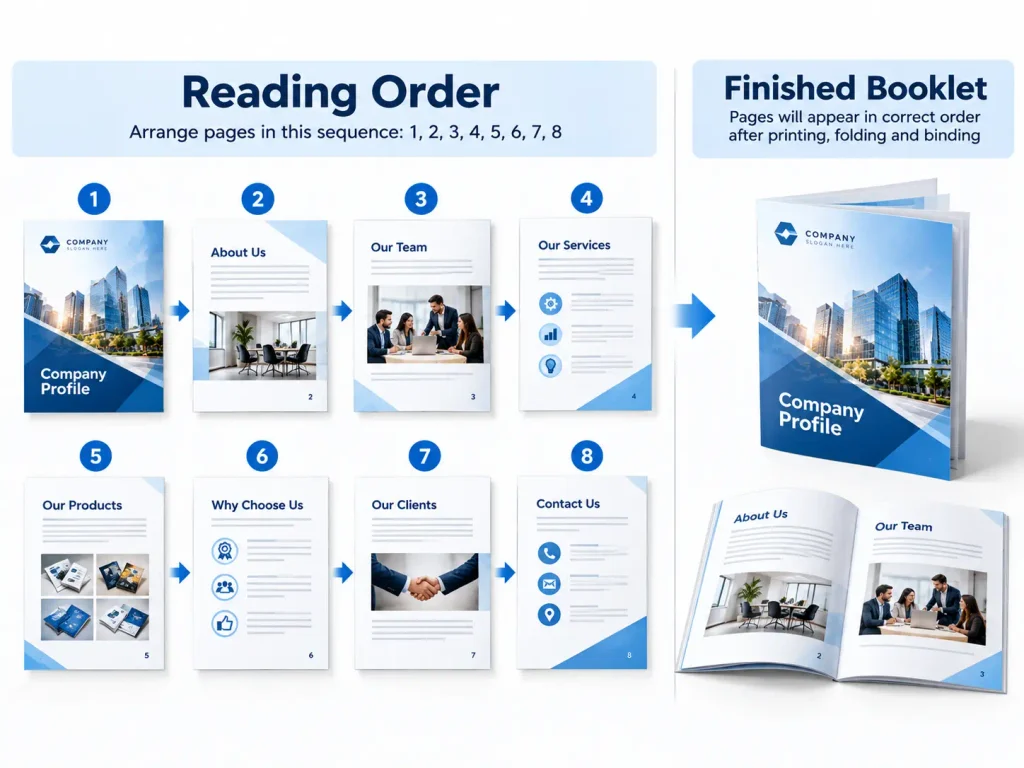
The majority of booklet projects are usually arranged in the normal reading order of pages. This means the order of pages starts from page number 1 and proceeds to page number 2, page number 3 and so forth.
For example, a simple eight-page booklet should follow this order:
- Page 1: Front cover
- Pages 2–3: Introduction and opening content
- Pages 4–7: Main content
- Page 8: Back cover
When someone opens the finished booklet, they will get the intended reading order.
However, there is an important difference between reading order and printer spreads.
- Reading order: Pages appear individually in the sequence readers will follow.
- Printer spreads: Pages are positioned side by side on a larger sheet so they appear in the correct order after printing, folding and binding.
In many professional printing workflows, it is possible to submit a PDF with the pages in the normal reading order. The printer or printing software will take care of the arrangements, also called imposition. Always confirm the required file format with your printer before changing the page order manually.
How to Arrange Booklet Pages Step by Step
Follow these steps to prepare your booklet layout correctly.
Step 1: Decide the Total Number of Pages
First, decide the total number of pages your booklet will have, which includes the front cover, inside pages, primary content and back cover.
With saddle-stitched booklets, where folded sheets are joined together using staples across the middle, the total number of pages should be a multiple of four. Since each folded sheet gives four pages- two on front and two at the back.
For example, an eight-page booklet is produced using two folded sheets whereas a 12-page booklet uses three folded sheets. If you don’t have adequate content to fill every page, you will be required to insert extra blank pages.
Step 2: Put Pages in Reading Order
To create your document, number your pages from the first page to the last. Do not move the first and last pages next to each other simply because they will appear together on a printed sheet.
A basic eight-page document should be arranged as:
1 → 2 → 3 → 4 → 5 → 6 → 7 → 8
This is the order of pages to be followed in a document, not an arrangement of printed pages.
Step 3: Choose the Correct Booklet Layout
Before printing or exporting, confirm the layout options if you are using any software that offers booklet printing services.
Depending on the software and workflow, booklet settings may automatically position pages for double-sided printing and folding. If you are submitting artwork to a professional printer, ask whether they want individual PDF pages or printer spreads.
Step 4: Check the Page Orientation
Make sure that the size and the orientation of the pages remain the same throughout the entire document except cases where the design requires a different use of the page. For example, an A5 portrait booklet could be made by printing on a bigger paper and folding it into an A5 booklet.
It is important to verify the final size before starting the design making sure that all text, images and margins will fit into the final product.
How Booklet Page Imposition Works
The process of arranging individual pages on larger printing sheets so that they come in the correct order after printing, folding and binding is called booklet imposition.
For instance, if we take the case of an eight-page saddle-stitched booklet, the first sheet on the outside side will place page 8 along with page 1. On the back side of the sheet, pages 2 and 7 will be placed next to each other. The second sheet will have other pages.
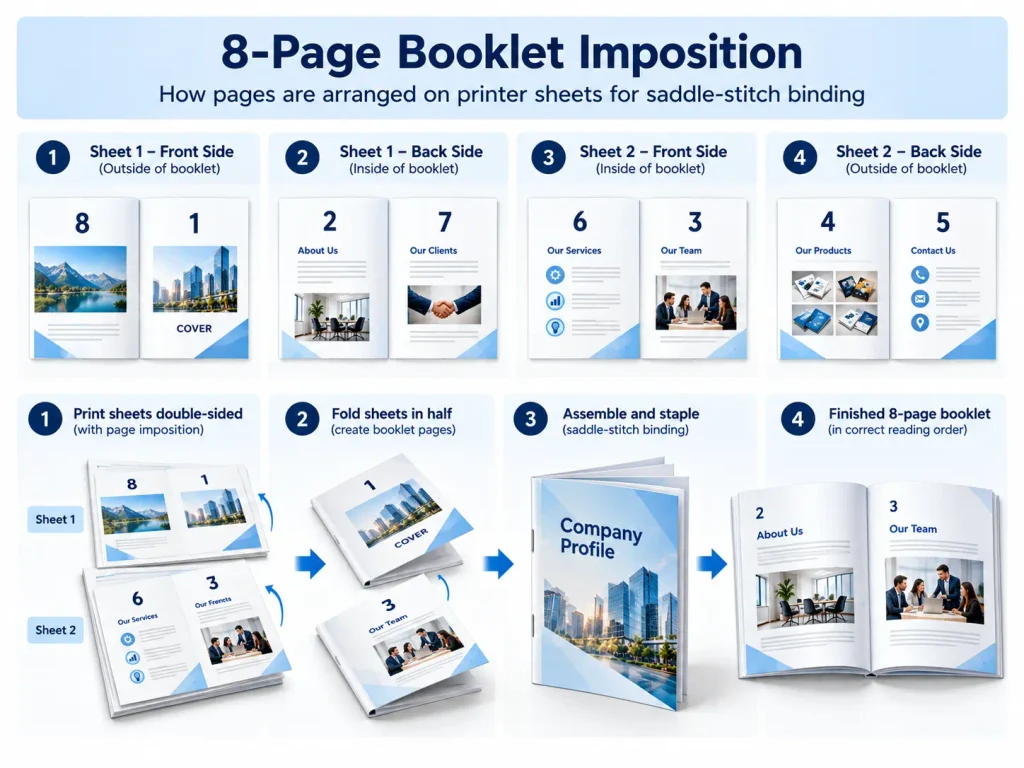
The exact left-right positions depend on the sheet orientation, printing setup and folding method.
Here is a simplified example of the page pairs involved:
| Sheet side | Page pair |
| First sheet, outside | 8 and 1 |
| First sheet, inside | 2 and 7 |
| Second sheet, outside | 6 and 3 |
| Second sheet, inside | 4 and 5 |
These pairs illustrate the basic idea rather than a universal production template. The actual positions and orientation must be set according to the printer’s imposition requirements.
The key point is that you usually should not rearrange the pages manually. If you put every page in correct order and the printer does the imposition, it will create the spreads itself.
How to Prepare Your Booklet PDF for Printing
Before submitting your file, review the document carefully. A well-prepared PDF helps reduce delays and prevents avoidable layout problems.
Use this checklist:
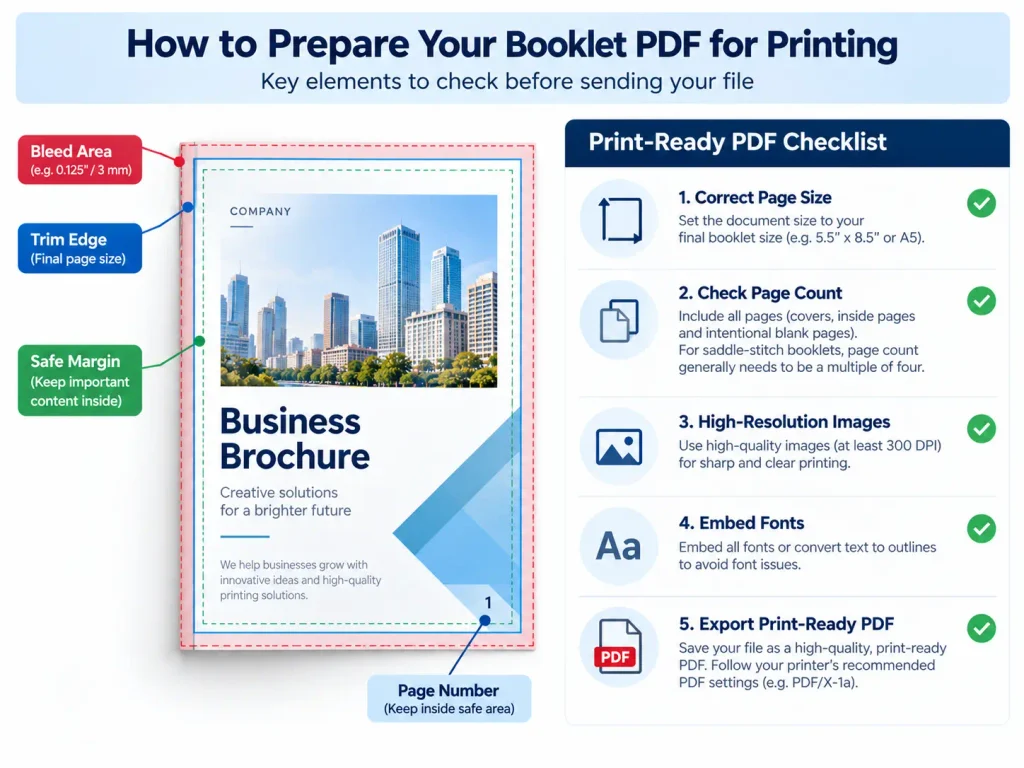
- Page size: Confirm the finished booklet dimensions with your printer.
- Page count: Check that all pages, including covers and intentional blanks, are included.
- Margins and safe area: Keep important text, logos and page numbers away from the trimming edges and center fold.
- Bleed: Extend background colors and images beyond the trim edge when the design requires it. Follow the printer’s bleed specifications.
- Images: Use sufficiently high-resolution images to avoid blurry printing.
- Fonts: Embed fonts in the PDF or follow the printer’s font requirements.
- Export settings: Use the requested PDF preset or print-ready format.
After exporting, open the PDF and review every page. Look for missing images, cut-off text, incorrect page numbers, unexpected blank pages and inconsistent spacing.
If you are unsure whether your file is set up correctly, ask your printer to review it before production. Businesses preparing catalogs, company profiles, or marketing materials can explore Booklets Printing Services in Los Angeles to find suitable printing options. Confirm the page size, binding method and file requirements before submitting your final artwork.
Common Booklet Page Arrangement Mistakes
A few checks can help avoid some of the common problems during booklet preparation.
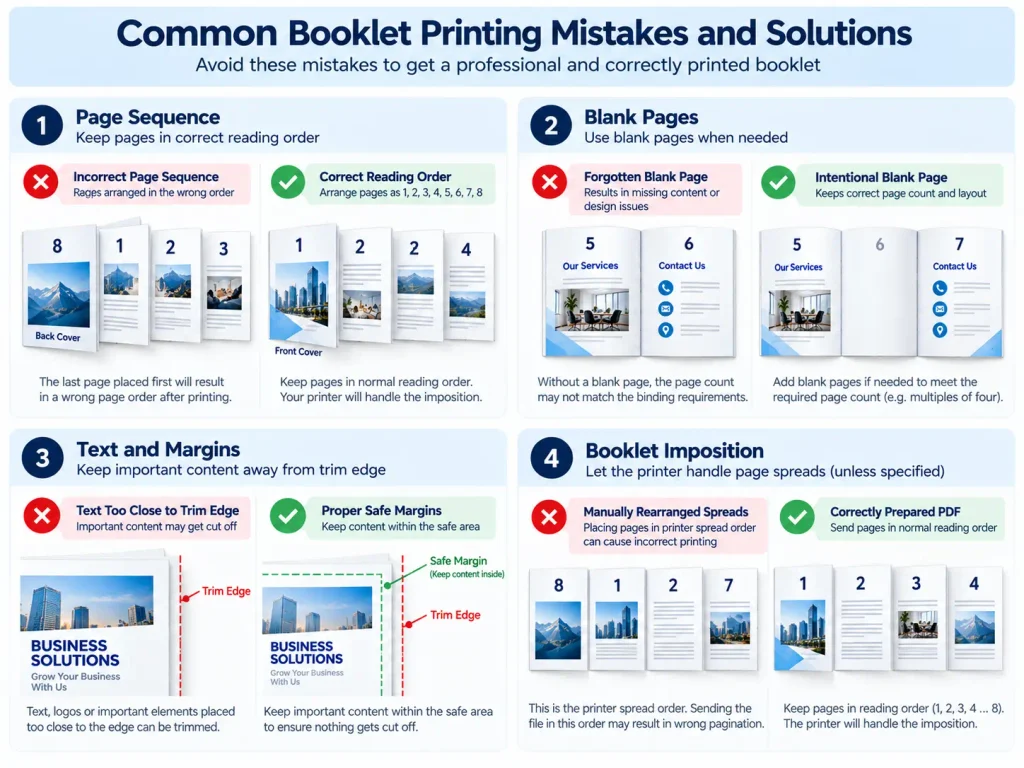
1. Manually rearranging pages too early
Moving the last page beside the first page can disrupt the document’s reading order. Keep the PDF in normal reading order unless your printer specifically requests imposed pages.
2. Forgetting blank pages
Blank pages may be necessary to achieve the required page count or create the intended layout. Include them deliberately and check their positions before exporting.
3. Ignoring the binding method
Saddle-stitched booklets generally require page counts divisible by four. Other binding methods may have different requirements, so confirm the specifications for your project.
4. Skipping the final PDF review
Even a well-designed booklet can contain missing images, incorrect page numbers, or text that sits too close to the trim edge. Reviewing the exported PDF can help catch these problems before printing.
If you need booklets for an upcoming meeting, trade show, presentation, or business event, Same Day Booklet Printing in Los Angeles may be worth exploring. Prepare your artwork in advance and confirm the available booklet sizes, page count, binding options, order deadline and production availability with your printer before placing an urgent order.
Making sure the pages are in proper order is crucial in producing a booklet for publishing. First, determine how many pages you need, keep the document in proper reading order and check to see whether the printer needs individual pages or printer spreads. Finally, inspect the final PDF to ensure it is formatted and laid out properly before sending it out.
Taking a few minutes to check these details can help you avoid reprints and produce a booklet that looks professional from the front cover to the back.
❓ FAQs
Q1: How do I arrange pages for booklet printing in Microsoft Word?
In Microsoft Word, open the Page Setup settings and select the booklet or book-fold layout if available in your version. Check the paper size, margins, and page order, then preview the document before printing.
Q2: How do I print a PDF as a booklet?
Open the PDF in a viewer that supports booklet printing, such as Adobe Acrobat Reader. Select Print, choose Booklet under the page-sizing or layout options, and check the binding and double-sided printing settings before printing.
Q3: What is the correct page order for an 8-page booklet?
The document should normally contain pages 1 through 8 in reading order. During imposition, pages 8 and 1 are paired on the outside of one sheet, while pages 2 and 7 are paired on its reverse. The remaining pages are arranged on the second sheet.
Q4: Can I print a booklet with 10 pages?
A 10-page document can be created, but a saddle-stitched booklet generally requires a total page count divisible by four. You may need to add two blank pages or adjust the content to reach 12 pages.
Q5: What is the difference between booklet printing and normal printing?
Normal printing typically places one document page on each printed side. Booklet printing positions pages for double-sided printing and folding so the finished pages appear in reading order.
Q6: How do I arrange pages for saddle-stitch booklet printing?
Prepare the pages in normal reading order and ensure the total page count meets the printer's requirements. The printer or imposition software usually arranges the pages into printer spreads for folding and stapling along the center.


